Initial Setup
The procedures outlined here are meant to be executed on a MIP interacting with a CVA/H hosted Gitlab instance. These procedures are generally considered unsafe and should not be performed on internet connected systems (unless you know what you are doing).
1. Generate a Personal Access Token (PAT)
A Personal Access Token (PAT) is a secure alternative to using passwords for authentication to Gitlab, especially when dealing with Git over HTTPS or the API. It's used to access the repository, manage organizational and personal projects, or integrate with the API, providing a more controlled scope of access than a password.
-
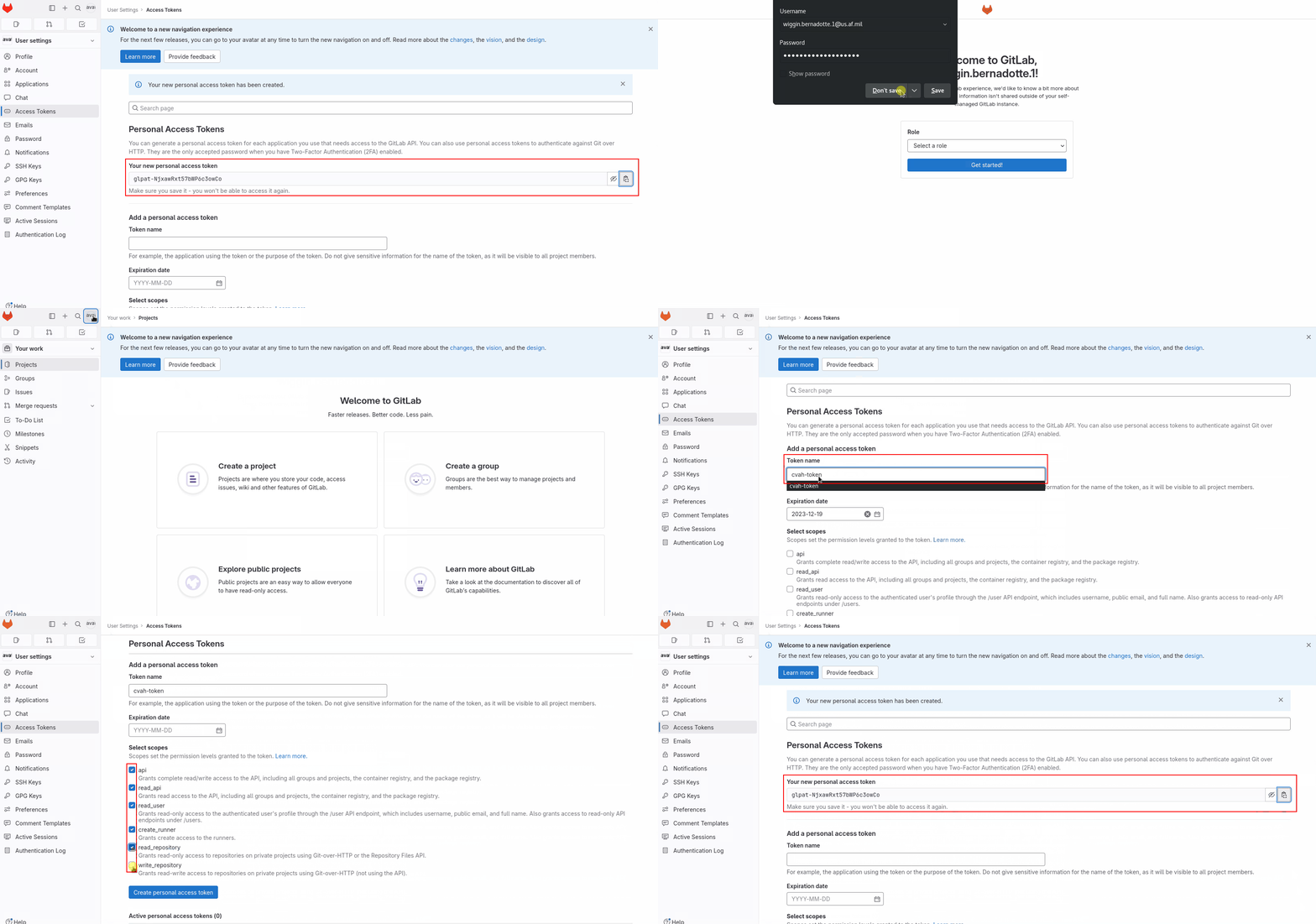
Login to the DIP Gitlab instance with your SSO user account
- For first-time logins, you will be asked to choose a role - select
Security Analyst(although it really doesn't matter)
- For first-time logins, you will be asked to choose a role - select
-
In the top-left corner, click on the profile avatar icon and select Edit profile
-
On the left-hand column, click Access Tokens
-
Under Add a personal access token, fill the following details:
- Token Name:
cvah-token - Expiration date: (Clear this out by clicking the
Xto make it last forever) - Select scopes: (Select all options)
- Token Name:
-
Click the Create personal access token button
-
The field
Your new personal access tokenwill appear - copy and paste the token to a notepad (gedit) since you won't be able to access it again
2. Save Git Credentials
Git provides a credentials helper that temporarily stores your credentials in memory for use by subsequent git commands. The ~/.git-credentials file is used in conjunction with Git's credentials helper to store your credentials for repositories. It enables you to avoid entering your username and password every time you perform operations on remote repositories that require authentication.
It is important to use your own SSO credentials, as well as your real .mil email/username so that 262COS/DOK can trace commits back to specific users - otherwise changes will not be considered for merging back into the main project.
Execute the following commands as the assessor user to save your Git credentials and PAT to the MIP:
git config --global credential.helper store
git config --global user.email "<YOUR_.MIL_EMAIL>"
git config --global user.name "<YOUR_.MIL_USERNAME>" # Everything before the @ in your .mil email
echo "https://<GITLAB_USERNAME>:<PERSONAL_ACCESS_TOKEN>@gitlab" > ~/.git-credentials
chmod 600 ~/.git-credentials
3. Disable Git SSL/TLS Verification
If the Git repository is hosted with a certificate that the MIP does not trust (likely because DIP Web CA Setup was not performed), then git operations will fail unless the -c http.sslVerify=false argument is passed everytime. The command below globally disables SSL/TLS certificate verification for all Git operations on your machine.
Execute the following command to force git to skip SSL certificate checking (and ignore file mode changes when making commits):
git config --global http.sslVerify false
git config --global core.fileMode false
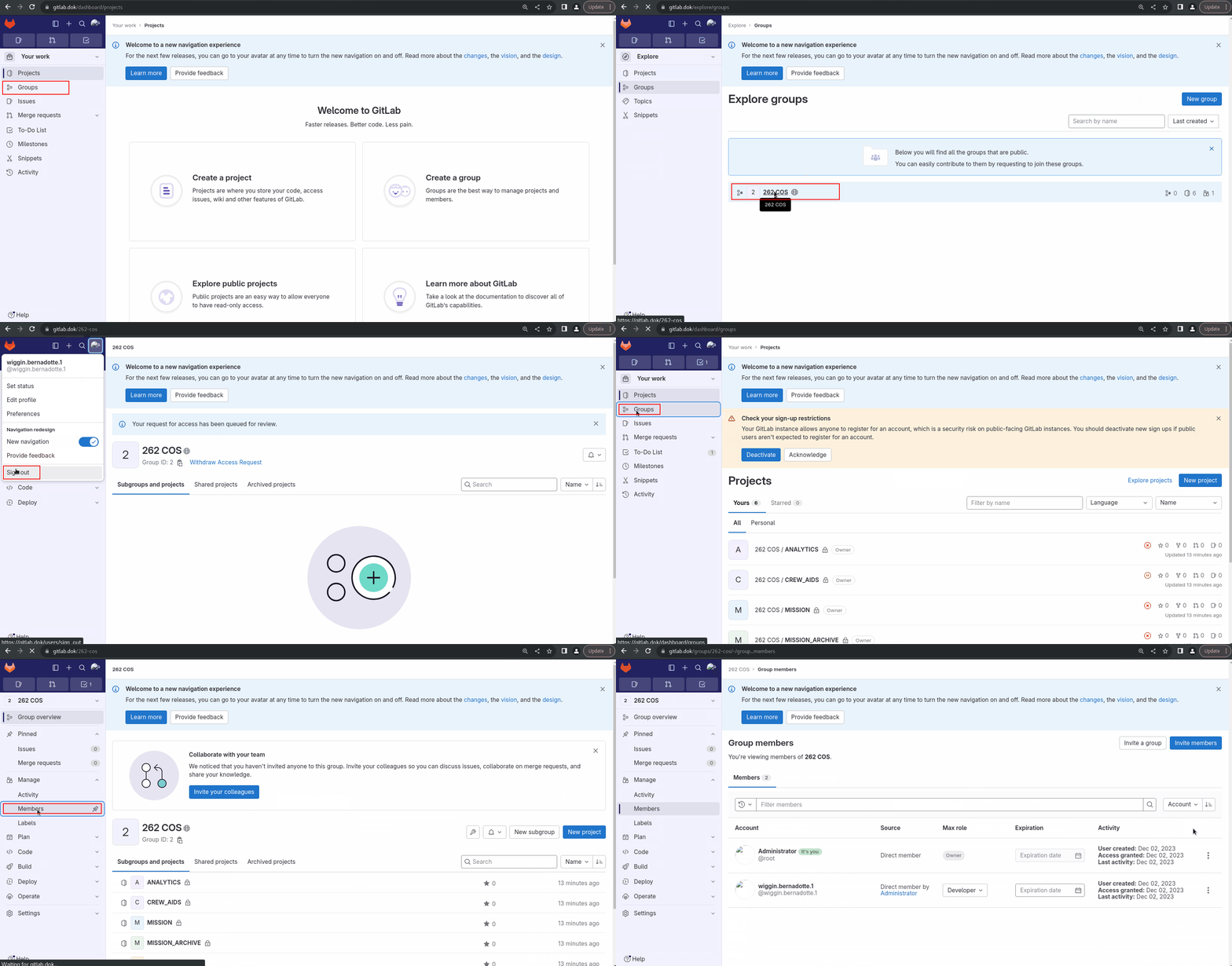
4. Join the 262-cos group
-
Login to the DIP Gitlab instance with your SSO user account
-
On the left-hand column, click Groups
-
Click Explore Groups
-
Click the
262 COSgroup -
Click Request Access
-
-
Logout and log back in to the DIP Gitlab instance as
root(credentials are listed on the DIP Controller portal page)-
On the left-hand column, click Groups
-
Click Explore Groups
-
Click the
262 COSgroup -
On the left-hand column, click Manage -> Members
-
Click the Access requests tab and accept your access request
-